Skip to content
English
  • There are no suggestions because the search field is empty.

Adjusting the Clock for Daylight Saving Time

Change the time settings to reflect the time change accurately. Ensure that scheduling and all functions remain synchronized with the correct time, maintaining operational efficiency and avoiding confusion for staff and customers.


  • To begin, access the settings by selecting "Business Unit" from the left sidebar.
  • In the "Preferences" section, choose "Edit" at the bottom to open settings
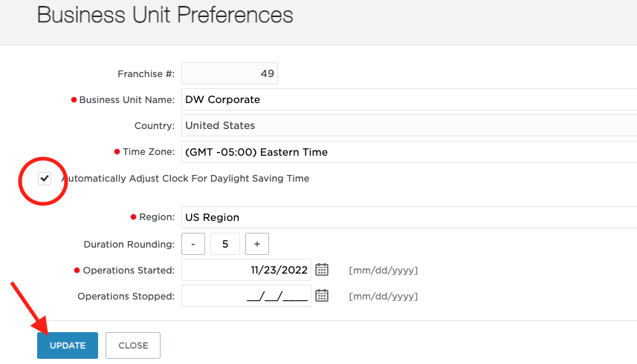
  • Check the box labeled "Automatically Adjust Clock for Daylight Saving Time"
  • Select the option "Update" to save your changes.
Screenshot 2024-06-03 at 11.14.59 AM