.png?width=100&height=75&name=Horizontal%20Logo%20(1).png)
Jump to:
Proposal Communication
Client Approval Process
Proposal Communication
-
From the Lead or Client profile, navigate down to “Evals and Programs” and choose the Evals & Programs (Job) where the evaluation appointment (work order) is located – Avoid using “Add New Proposals & Orders” from the Lead Profile.
-
Alternatively, you can select the “Evals & Programs” menu item and search for the lead to directly access the Job, reducing the number of clicks.
-
-
In the upper right corner of the “Evals and Programs” (Job), click on the white box marked “*New Proposals & Orders” - This action will link the evaluation appointment to the Proposal. (Assists with reporting)
-
Proposal & Orders summary: You may leave it blank or include notes about the program (Useful if providing multiple options)
- Add New Dog if one is not already in the profile
- Complete dog details
- Select Program (Make sure it is applied to correct dog)
-
Enter any additional details in the description box. Include the price. Then click continue.
-
- Update the “Date expired” information to indicate how long this proposal will be valid for.
- Select template for contract details. The default template can be adjusted by business unit by sending a ticket to www.thedogwizard.com/support
- Select “Create.”
-
To view the proposal as the client would, click on “Client Signature” to examine the complete document.
-
This email must be sent manually, so click “Email” from here to forward it to the client for approval.
-
-
If you need to generate a second proposal, remain on the screen from your initial proposal, click “Copy Proposals & Orders,” and choose “Create Version” – This will link the alternative proposals to the evaluation order. (Aids in reporting)
-
Remove the duplicated options and revise the program choices before dispatching the additional copies.
Client Approval Process
The client will receive an email containing the proposal presentation, along with consent to treat forms, boarding facility contracts, and any other relevant documents, for their review and approval.
Example of Email: 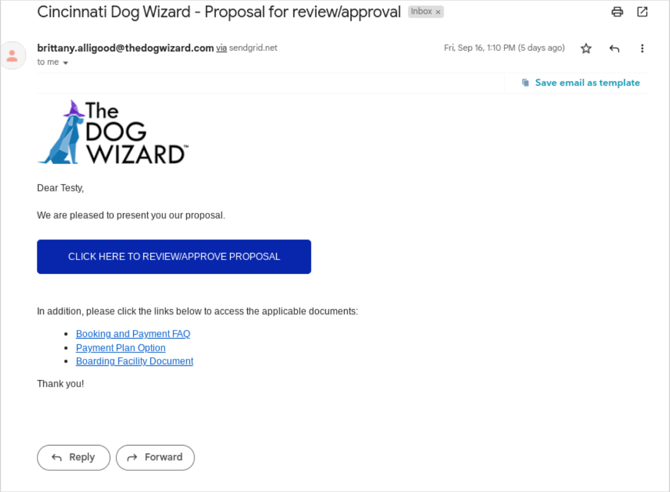
-
Once a client approves a proposal, the label will be automatically updated to reflect its approval.
Want to be notified of proposal approvals?
Go to Business Unit → Client Confirmation Emails and input the email addresses to receive notifications.